


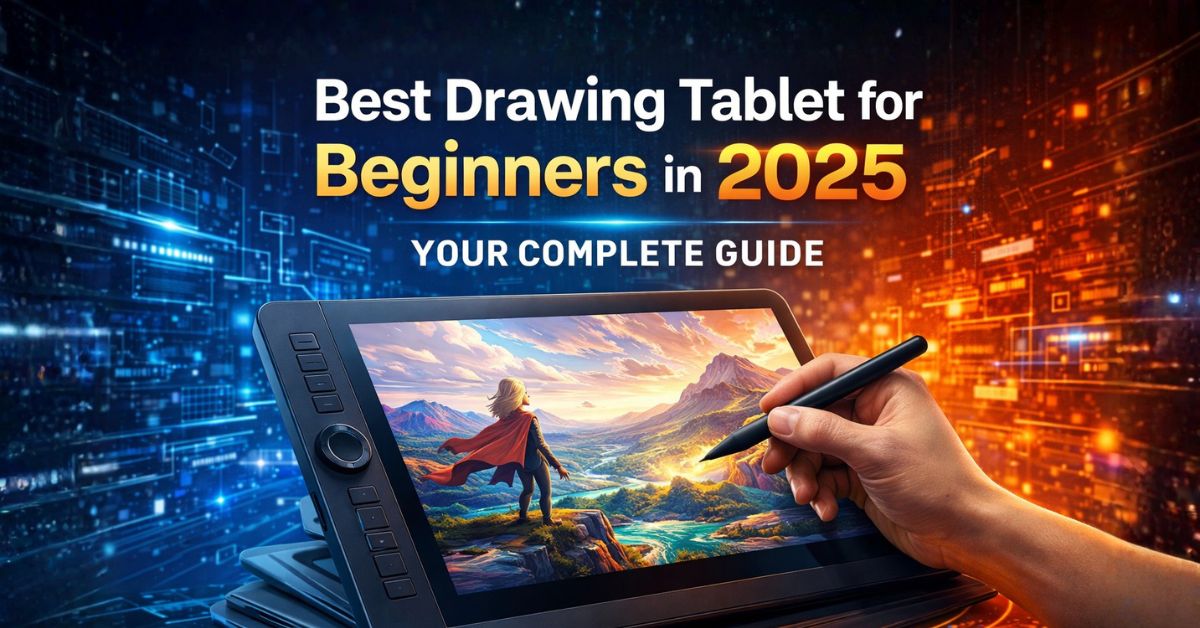
Entering the world of digital art is an exciting journey, but the first hurdle most artists face is choosing the best drawing tablet for beginners. For someone used to pencil and paper, the transition to a digital canvas can feel overwhelming without the right hardware. The right tablet doesn’t just provide a surface to draw on; it acts as a bridge between your physical movements and the digital world, allowing for a level of precision and control that a mouse simply cannot match. A well-chosen beginner digital art tablet helps reduce the learning curve, making it easier to master software like Photoshop, Procreate, or Clip Studio Paint while protecting you from frustration during those critical early stages of development.
In 2025, the market is filled with incredible options that balance performance with affordability. Whether you want to see your lines appear directly under your pen or prefer a portable standalone device, there is a perfect starting point for everyone. By investing in a tablet that matches your current skill level and future goals, you set yourself up for long-term success, allowing your creativity to flourish without technical barriers holding you back.
What is a Drawing Tablet?
A drawing tablet, also known as a graphics tablet or digitizer, is a specialized input device designed for artists and designers. Unlike a standard tablet like an iPad (though some iPads can serve this role), a dedicated drawing tablet is engineered specifically for stroke precision and pressure sensitivity. It uses a stylus—a digital pen—that communicates with the tablet surface to translate your hand movements into digital coordinates on your computer screen. This allows for natural-feeling strokes, varying line weights, and the ability to \”paint\” with digital brushes in a way that mimics traditional media like oils, charcoal, or ink.
These digital drawing tools are essential for modern creative workflows because they offer \”absolute positioning.\” This means that every point on the tablet surface corresponds exactly to a point on your screen. When you tap the top-right corner of your tablet, your cursor jumps immediately to the top-right of your monitor. This intuitive connection is what makes drawing tablets so much more powerful than a mouse for artistic work, providing the fine motor control needed for detailed character design, photo retouching, and complex digital illustrations.
Types of Drawing Tablets
Before you make a purchase, it’s important to understand the three main categories of tablets available for beginners.
Pen Tablets (Screenless)
Pen tablets are the most common entry point for hobbyists. They consist of a flat, sensitive pad that you connect to your computer via USB or Bluetooth. You draw on the pad while looking at your computer monitor. While this takes a few days to get used to (eye-hand coordination), these tablets are incredibly durable, affordable, and often have the best ergonomics because you don’t have to hunch over a small screen. They are the best drawing tablet for beginners on a budget.
Display Tablets (Pen Displays)
Display tablets feature a built-in monitor, allowing you to draw directly onto the screen. This feels the most like traditional drawing and is often preferred by those who find screenless tablets difficult to master. However, they must still be connected to a computer to function, acting as a second monitor. They are generally more expensive than pen tablets but offer a much more immersive experience for detailed work.
Standalone Tablets
Standalone tablets are fully functional computers with built-in drawing capabilities. The iPad Pro and Microsoft Surface Pro are the most famous examples. You don’t need to connect them to another PC; you just turn them on and start drawing anywhere. These offer the ultimate in portability but are usually the most expensive option. For a beginner drawing tablet, these are great if you also need a device for school, work, or general media consumption.
Best Drawing Tablets for Beginners in 2025
Here are six top-rated options that provide the best value and performance for new artists.
1. Wacom Intuos Small
Wacom is the industry standard, and the Intuos Small is their classic entry-level device. It is a screenless pen tablet that is built to last and comes with excellent bundled software.
- Pros: Extremely reliable, battery-free pen, compact.
- Cons: No screen, small drawing area.
2. Huion Kamvas 13 (2025 Edition)
If you want a screen without breaking the bank, the Kamvas 13 is an affordable drawing tablet that offers a beautiful 1080p display and a very responsive pen.
- Pros: Vibrant screen, laminated glass (less gap), customizable buttons.
- Cons: Requires multiple cables, stand usually sold separately.
3. XP-Pen Artist 12 (Gen 2)
Another fantastic display option, the XP-Pen Artist 12 is known for its X3 smart chip technology, which provides a more stable and accurate pen experience.
- Pros: Great pen accuracy, sleek design, very affordable.
- Cons: Screen brightness is slightly lower than competitors.
4. iPad Air (M2) with Apple Pencil Pro
The best standalone tablet for most beginners. With Procreate, the iPad Air offers a near-flawless drawing experience that is portable and intuitive.
- Pros: Portable, amazing software (Procreate), great for other tasks.
- Cons: High price, pencil sold separately.
5. Huion Inspiroy H640P
The ultimate affordable drawing tablet. For under $50, you get a solid, screenless device that is perfect for students and young hobbyists.
- Pros: Incredible value, thin and light, works with Android.
- Cons: Build quality is less premium, pen feel is slightly \”clicky.\”
6. Gaomon PD1161
A compact 11.6-inch display tablet that is perfect for small desks. It offers a surprising amount of quality for its low price point.
- Pros: Very portable for a display tablet, good color accuracy.
- Cons: Smaller screen can feel cramped for large illustrations.
Features Beginners Should Look For
When comparing different models, focus on these three technical aspects to ensure a smooth drawing experience.
Pressure Sensitivity
Pressure sensitivity determines how much your line width or opacity changes based on how hard you press. Most modern tablets offer 8,192 levels of pressure. For a beginner, anything above 4,096 is perfectly fine. The goal is a tablet that can detect subtle changes, allowing you to shade and taper lines naturally, just like a real pencil.
Pen Accuracy and Tilt Support
Pen accuracy is about how closely the digital cursor follows your actual pen tip. Lower-quality tablets might have \”jitter\” (wobbly lines) or \”parallax\” (the cursor being slightly away from the pen tip). Tilt support is another key feature—it allows you to angle the pen to create broad strokes, which is essential for digital painting and realistic shading.
Compatibility
Always check that the tablet is compatible with your operating system (Windows, Mac, or Android). Some tablets now even work with Chromebooks, which is great for students. Additionally, ensure your computer has the right ports (HDMI, USB-C, or USB-A) or that you have the necessary adapters to connect the device.
Setup Guide: How to Get Started
Setting up your new tablet is usually a straightforward process, but following these steps will prevent common driver issues.
- Download Drivers: Go to the manufacturer’s website (Wacom, Huion, etc.) and download the latest drivers for your specific model. Avoid using the ones on a CD if provided, as they are likely outdated.
- Install Before Connecting: It is often best to install the driver software before you plug the tablet into your computer for the first time.
- Calibrate: Once connected, open the tablet settings and perform a \”pen calibration.\” This ensures the cursor aligns perfectly with your pen tip.
- Set Shortcuts: Map the physical buttons on your tablet and pen to common actions like \”Undo\” (Ctrl+Z) or \”Zoom In/Out\” to speed up your workflow.
FAQs
1. Can I use a drawing tablet with a laptop?
Yes, almost all drawing tablets are designed to work perfectly with laptops, provided you have the correct ports or adapters.
2. Do I need an expensive tablet to be a good artist?
Absolutely not. Skill comes from practice. An expensive tablet makes the process more comfortable, but some of the world’s best digital art is created on entry-level hardware.
3. What is parallax in display tablets?
Parallax is the visual gap between the pen tip and the cursor on the screen, caused by the thickness of the glass. Modern \”laminated\” screens minimize this gap.
4. Can I draw on a tablet without a computer?
Only if it is a \”standalone\” tablet like an iPad or Samsung Galaxy Tab. Pen tablets and display tablets must be connected to a PC or laptop.
5. Is Wacom better than Huion or XP-Pen?
Wacom has better driver stability and pen feel, but Huion and XP-Pen offer significantly more value (larger screens for much less money).
Conclusion
Finding the best drawing tablet for beginners is the first step toward a rewarding creative hobby or career. By choosing a device that fits your budget and workspace—whether it’s a reliable Wacom Intuos or a vibrant Huion Kamvas—you provide yourself with the tools needed to translate your imagination into digital art. Focus on core features like pressure sensitivity and pen accuracy, follow a proper setup guide, and remember that the most important part of the journey is consistent practice. Your digital canvas is waiting; pick up your stylus and start creating today!