



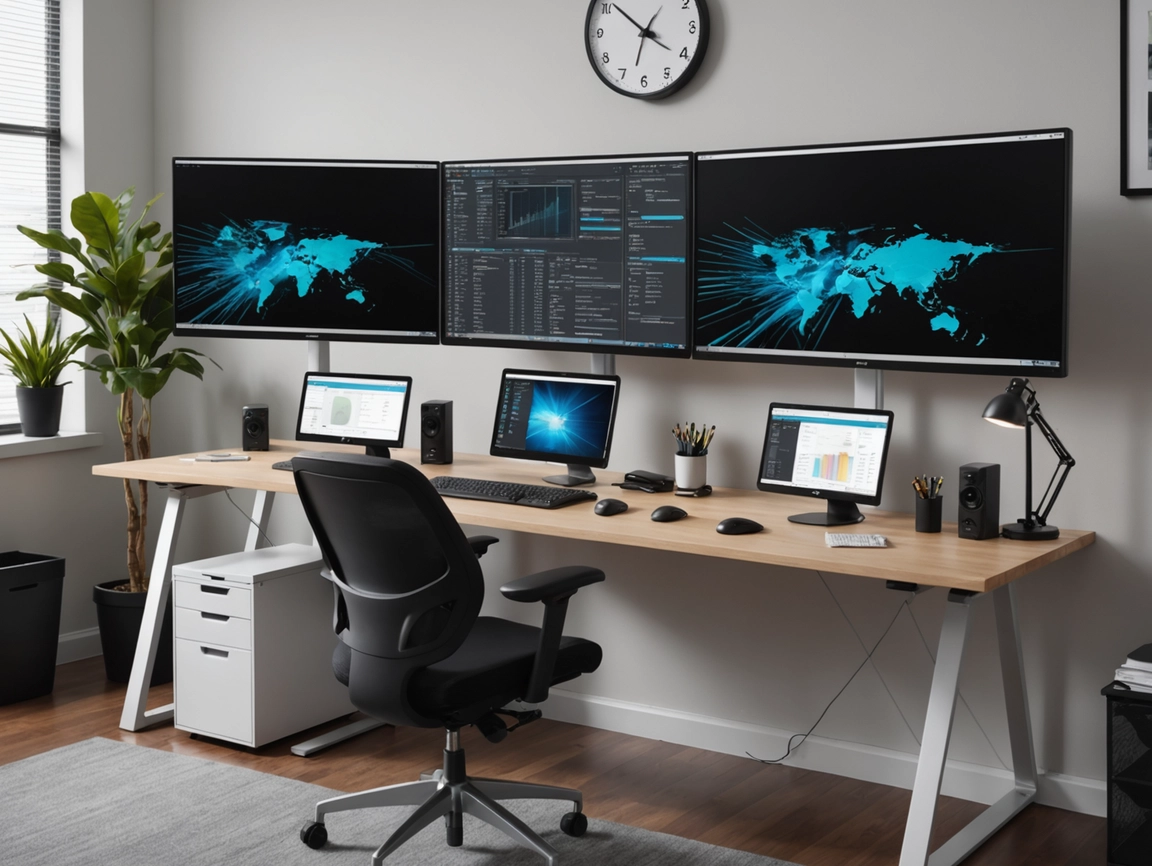
Setup
In today’s fast-paced digital workspace, efficiency is everything. Whether you’re a developer juggling multiple code windows, a designer switching between creative applications, or a professional managing countless spreadsheets and communication tools, screen real estate matters. A dual monitor setup is one of the single most effective upgrades you can make to transform your workflow. Studies have consistently shown that using two monitors can increase productivity by 20-30% compared to a single display, primarily by reducing the time spent alt-tabbing between applications and minimizing cognitive load. With more visual space, you can keep reference materials visible while working, monitor real-time data dashboards, or simply enjoy a less cluttered digital environment.
Benefits of Dual Monitors
The advantages of a dual monitor setup extend far beyond just having more pixels on your desk. The most immediate benefit is the reduction in context switching. When you have email open on one screen and your main work application on the other, you eliminate the constant need to minimize and maximize windows. This seemingly small change has a profound impact on focus and mental clarity, as your brain doesn’t need to constantly re-orient itself to new visual contexts. For creative professionals, dual monitors allow for a streamlined workflow where you can have your design canvas on the primary display and tool palettes, reference images, or client feedback on the secondary screen.
Beyond productivity, dual monitors also improve multitasking quality. Rather than cramming multiple windows into a single screen with tiling or split-screen modes (which inevitably makes each window too small), you can dedicate an entire monitor to each task. This is especially valuable for data analysis, where you might need a full spreadsheet visible alongside visualization software, or for developers who benefit from having documentation on one screen while writing code on the other. Additionally, dual monitors can reduce physical strain; instead of constantly scrolling or switching tabs, you can arrange your workspace so that frequently referenced materials are always visible at a natural viewing angle.
Hardware Requirements
Before setting up your dual monitors, it’s essential to ensure your hardware can support the configuration. The first thing to check is your computer’s available video outputs. Most modern laptops and desktops come with at least one HDMI port, and many also include DisplayPort, USB-C (with video support), or even legacy VGA/DVI connections. For a dual monitor setup, you’ll need at least two video output ports, or alternatively, a single port that supports daisy-chaining (common with DisplayPort) or a USB-to-HDMI adapter if necessary.
Your graphics card (GPU) is the next consideration. Integrated graphics on modern Intel or AMD processors can typically handle two 1080p monitors without issue, but if you’re working with higher resolutions like 1440p or 4K, or if you’re running graphics-intensive applications, a dedicated GPU is highly recommended. Check your GPU’s specifications to ensure it supports the number of displays and the resolution you want. As for the monitors themselves, try to match their size and resolution for the most seamless experience. Two 24″ or 27″ 1080p or 1440p displays are popular choices that balance screen space with affordability and performance.
Don’t forget about cables and mounting. You’ll need the appropriate video cables (HDMI, DisplayPort, etc.) to connect both monitors, and you may want to invest in a dual monitor stand or desk mount to save desk space and create a cleaner setup. Adjustable mounts are particularly useful as they let you fine-tune the height, tilt, and rotation of each monitor for optimal ergonomics.
Step-by-Step Setup Guide
Setting up your dual monitors is straightforward, but the process differs slightly between Windows and macOS. Here’s how to get your dual monitor setup running on both platforms.
Windows 10/11 Setup
- Connect your monitors: Plug both monitors into your computer using the appropriate cables (HDMI, DisplayPort, etc.). Power them on.
- Access Display Settings: Right-click on your desktop and select “Display settings” from the context menu.
- Detect displays: Windows should automatically detect both monitors. If not, scroll down and click “Detect” under the “Multiple displays” section.
- Arrange your displays: You’ll see numbered boxes representing your monitors. Drag them to match their physical arrangement on your desk (e.g., if your second monitor is to the left, drag its box to the left of monitor 1).
- Choose your display mode: Scroll to “Multiple displays” and select your preferred mode: “Extend these displays” (recommended for productivity), “Duplicate these displays” (mirrors the same content on both), or “Show only on 1/2” (uses only one monitor).
- Set your primary monitor: Click on the monitor you want as your primary display, scroll down, and check “Make this my main display.”
- Adjust resolution and scaling: For each monitor, select it and set the appropriate resolution (usually the highest available) and scaling percentage (100%, 125%, 150%) based on your preference.
macOS Setup
- Connect your monitors: Plug both monitors into your Mac using the appropriate cables or adapters.
- Open System Preferences: Click the Apple logo in the top-left corner and select “System Preferences” (or “System Settings” on macOS Ventura and later).
- Go to Displays: Click on “Displays.” macOS should automatically detect your external monitors.
- Arrange displays: Click on the “Arrangement” tab. You’ll see boxes representing your displays. Drag them to match their physical positions.
- Set primary display: Drag the white menu bar from one display box to another to set which monitor is your primary (this is where your Dock and menu bar will appear).
- Mirror or extend: Uncheck “Mirror Displays” to extend your desktop across both monitors. If checked, both will show the same content.
- Adjust resolution: In the “Display” tab for each monitor, select the “Scaled” option and choose your preferred resolution.
Best Monitor Layouts
How you physically arrange your dual monitors significantly impacts ergonomics and workflow efficiency. The most common layout is the side-by-side horizontal setup, where both monitors are placed next to each other at the same height. This works well for most users and allows for seamless mouse movement between screens. To optimize this layout, try to minimize the bezel gap between the two monitors and ensure both are at eye level to avoid neck strain. Many users prefer to have their primary monitor directly in front of them and the secondary monitor angled slightly inward to reduce the need to turn their head.
Another effective layout is the main + vertical configuration, where your primary monitor is in landscape orientation and a secondary monitor is rotated 90 degrees to portrait mode. This setup is particularly popular among developers, writers, and anyone who works with long documents or code files, as the vertical monitor lets you see significantly more lines of text at once. The portrait-oriented screen is also excellent for monitoring social media feeds, long emails, or chat applications.
For those with limited desk space or who prefer a more immersive setup, a stacked vertical arrangement can work well, where one monitor is placed above the other. This requires a sturdy monitor arm and may involve more neck movement, but it can be useful for specific workflows like video editing (timeline on bottom, preview on top) or stock trading (charts on one screen, order entry on another).
Productivity Tips for Dual Monitor Setup
To truly maximize your dual monitor setup, it’s important to develop habits and use tools that leverage the extra screen space effectively. One of the best practices is to designate specific functions to each monitor. For example, use your primary monitor for active work (writing, coding, designing) and your secondary monitor for passive or reference tasks (email, chat, documentation, dashboards). This mental separation helps maintain focus on your main task while keeping important information within easy glance.
Window management tools can greatly enhance your dual monitor experience. On Windows, PowerToys includes a “FancyZones” feature that lets you create custom snap layouts across both screens. On macOS, apps like Magnet or Rectangle provide similar functionality, allowing you to quickly snap windows to predefined zones with keyboard shortcuts. These tools eliminate the tedious manual resizing of windows and ensure a consistent, organized workspace.
Keyboard shortcuts are another productivity multiplier. Learn the shortcuts to move windows between monitors (Windows + Shift + Left/Right Arrow on Windows; varies by app on macOS) and to maximize/minimize windows quickly. Additionally, consider using virtual desktops (Windows 10/11’s Task View or macOS’s Spaces/Mission Control) in combination with your dual monitors to create even more workspace configurations without physical clutter.
Troubleshooting Common Issues
Even with a proper setup, you may encounter some common issues. If one or both monitors are not detected, first check all physical connections and ensure the monitors are powered on. Try using a different cable or port, and restart your computer. On Windows, manually click “Detect” in Display Settings. On macOS, hold Option while clicking “Detect Displays” in System Preferences. If issues persist, update your graphics drivers from your GPU manufacturer’s website.
For resolution or scaling problems, where text appears too small or blurry, ensure each monitor is set to its native resolution. If you’re using different resolution monitors, you may need to adjust scaling individually for each display. On Windows, this is done per-monitor in Display Settings. On macOS, each display has its own resolution settings. If you experience flickering or artifacts, try a different cable (especially if using older VGA or DVI), check for driver updates, or reduce the refresh rate slightly in display settings. Finally, if your mouse cursor gets stuck or behaves erratically at screen edges, double-check your display arrangement in settings to ensure the virtual layout matches the physical layout of your monitors.
Conclusion
A well-configured dual monitor setup is a game-changer for anyone serious about productivity. By following this guide, you’ve learned not only how to connect and configure two displays on both Windows and macOS, but also how to optimize your physical layout, develop efficient workflows, and troubleshoot common issues. The investment in a second monitor pays dividends daily through reduced frustration, improved multitasking, and a more organized digital workspace. Whether you’re coding, designing, trading, writing, or managing projects, the extra screen real estate will quickly become indispensable. Set up your dual monitors today and experience the productivity boost that millions of professionals rely on every day.